
Sample Video
Create cinematic AI videos from a written prompt
A text to video generator turns a scene description into a moving clip. Describe the subject, action, setting, camera movement, lighting, and mood; then choose the model that best matches the shot you have in mind.
GenVisuals keeps model choice and production controls in one workspace. Compare Seedance 2.5 with Seedance 2.0 Mini, Fast, and Standard plus Veo 3.1 Lite, Fast, and Quality, then set Aspect Ratio, Resolution, duration, and audio before starting the render.
- Social video concepts
- Product and campaign shots
- Storyboard motion tests
- Cinematic scene exploration
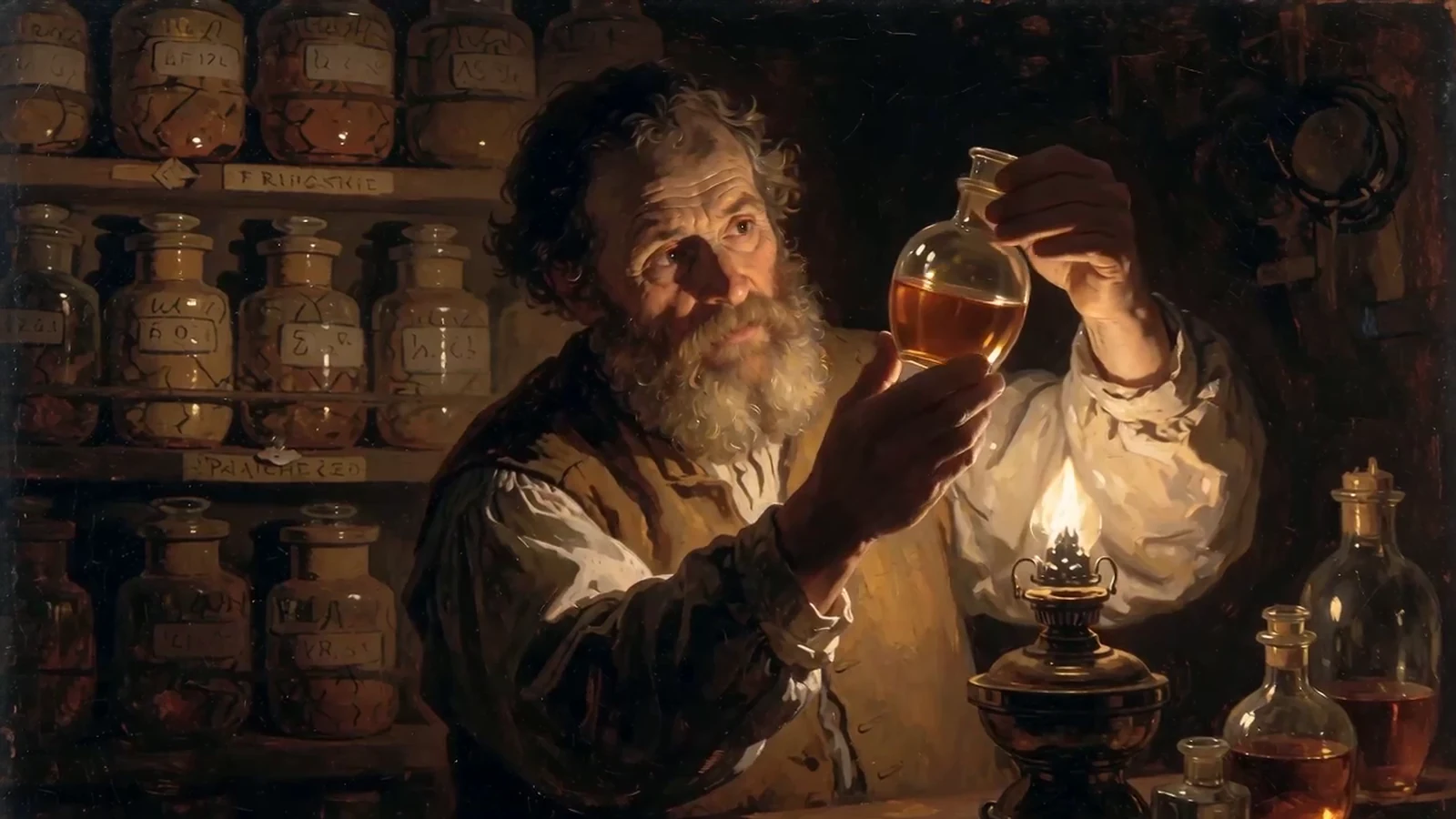
From input to a reviewable result.
Keep the first attempt focused, review the result, and change one variable at a time. This makes model comparisons and prompt improvements easier to evaluate.
- 01
Write one clear shot
Start with the subject and action, then add the setting, camera direction, lighting, and visual style.
- 02
Choose a video model
Compare models for motion, prompt adherence, native audio, available duration, and production cost.
- 03
Set the output
Select Aspect Ratio, Resolution, duration, and audio options, review the credit estimate, and generate.
Choose the model for the job.
Models differ in visual character, instruction following, available controls, speed, and credit cost. Start with the option closest to your goal, then compare using the same input.
Seedance 2.5
Long-form multimodal video generation with precise reference control.
Create with Seedance 2.5Seedance 2.0 Mini
Efficient multimodal video generation for rapid creative iteration.
Create with Seedance 2.0 MiniSeedance 2.0 Fast
Fast directed video generation with flexible image, video, and audio references.
Create with Seedance 2.0 FastPractical tips before you generate.
- Describe a single coherent scene before attempting a multi-shot sequence.
- Use concrete camera language such as slow dolly in, locked tripod, or handheld tracking.
- State what moves and what remains still to reduce ambiguous motion.
- Match Aspect Ratio to the final destination before you render.